Tutorial: Hello, World!
In this tutorial we learn how to send a message from a modem A to a modem B. The idea is to use two modems and a small water container to communicate through the water. Step by step, we will explain how to connect the modems, what you have to set up, and how a successful transmission looks like. If the communication works in both directions, then this is also a good sign that the hardware is working fine.
What You Need
Before we start, make sure that you have everything together for this tutorial:
- 2 ahoi modems (RX, TXB, MB with firmware installed)
- 2 power supplies (e.g., two 3S batteries)
- 2 hydrophones
- 2 USB-serial converter
- 1 computer (with PyLib installed)
- 1 testbed (like a water container or an aquarium)
Step 1: Hardware Setup
Take the first modem. Connect one of the hydrophones and the USB-serial converter to the modem (as shown in Figure 1). Then put the hydrophone in the water and connect the USB cable to your computer. Finally, connect the modem to a battery.
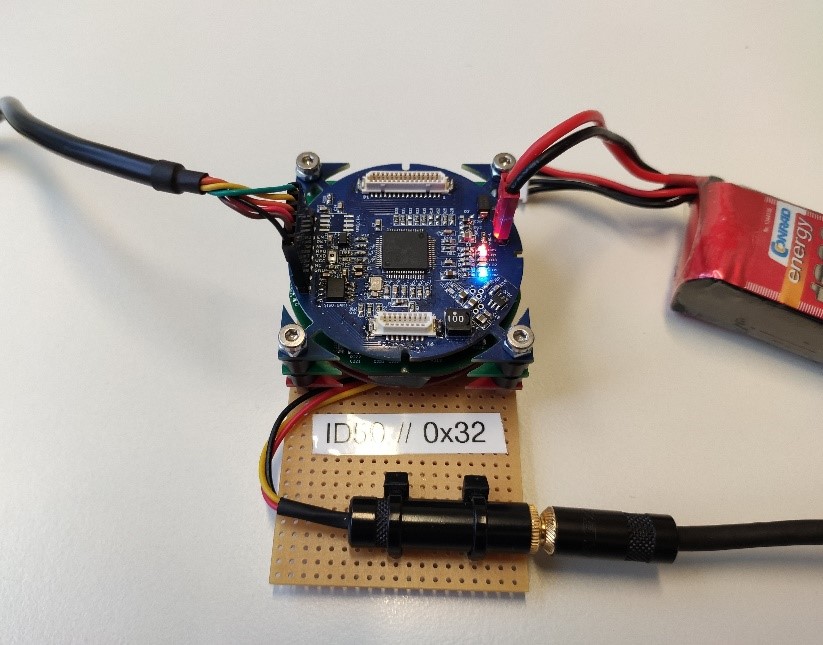 Figure 1: Correctly connected modem
Repeat this procedure for the second modem. In the end, your experiment setup should look similar to that shown in Figure 2. In the following introduction we call one of the Modem A and the other B.
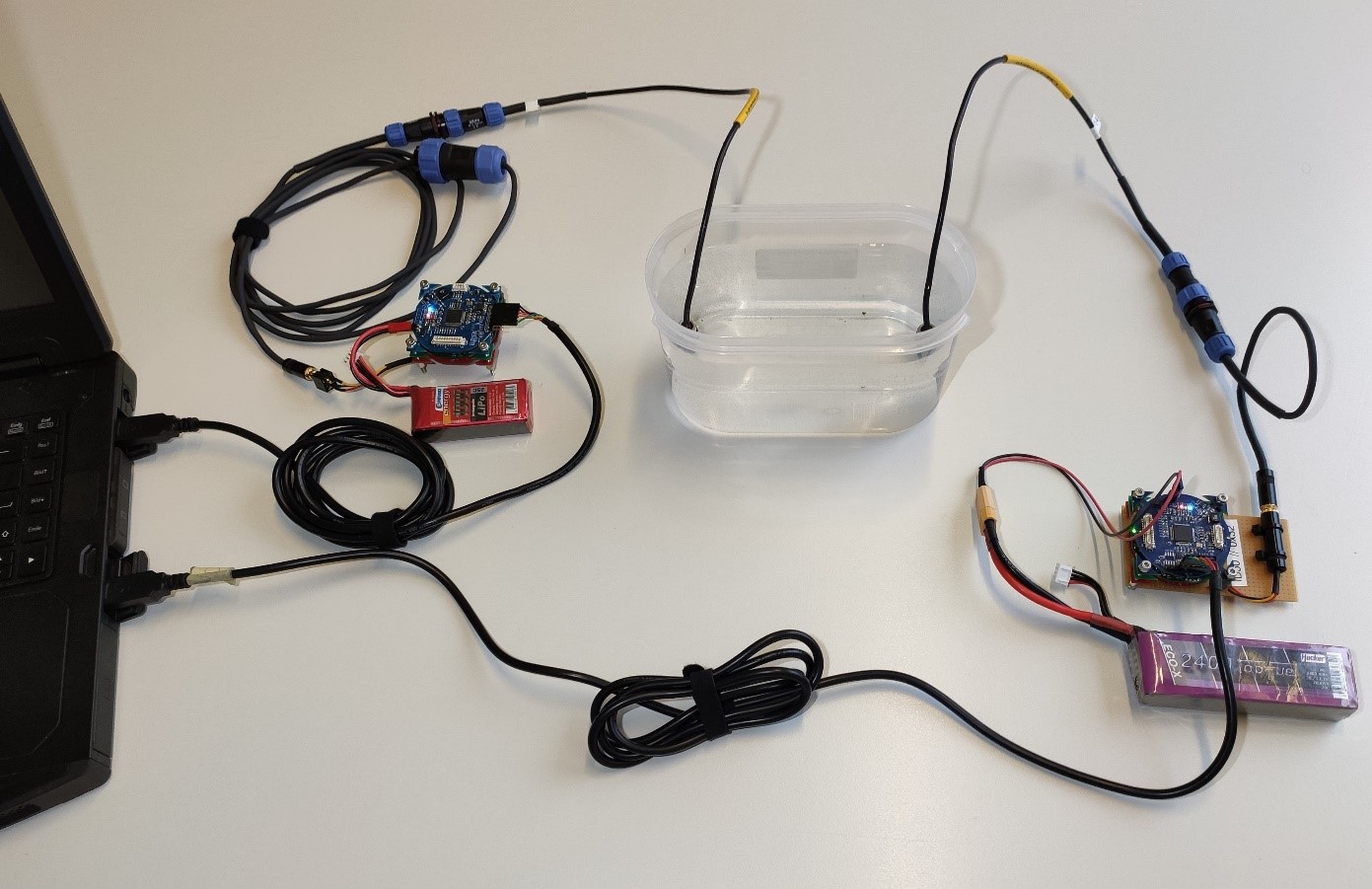 Figure 2: Experiment setup
Attention
Please note that a small container causes terrible reflections and is very different from a real environment. If communication between two modems does not work, try to move both hydrophones around, until communication succeeds.
Step 2: Starting MoSh
Next, we want to check the connections between the computer and the modems. First of all, we have to open for each modem a command line terminal and open the MoSh app (from PyLib) by typing in each of the two command line windows
python3 MoSh.py
Since we have two modems and two USB-serial converters connected to one computer, you should see a list of two devices when starting the MoSh. In the two command line windows and, hence, two instances of the MoSh, select the first list entry for one MoSh and the second list entry for the other MoSh.
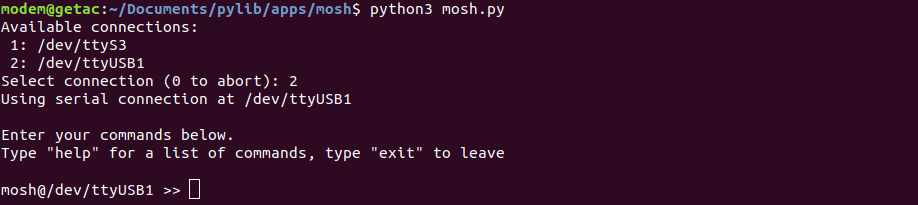 Figure 3: MoSh USB Port Selection (connection names / list entries may differ)
Step 3: MoSh Help Menu
It is always good to know where to get help. The MoSh app lists all commands when you type help or ?.
To receive further details about a specific command, type help <command> or ? <command>.
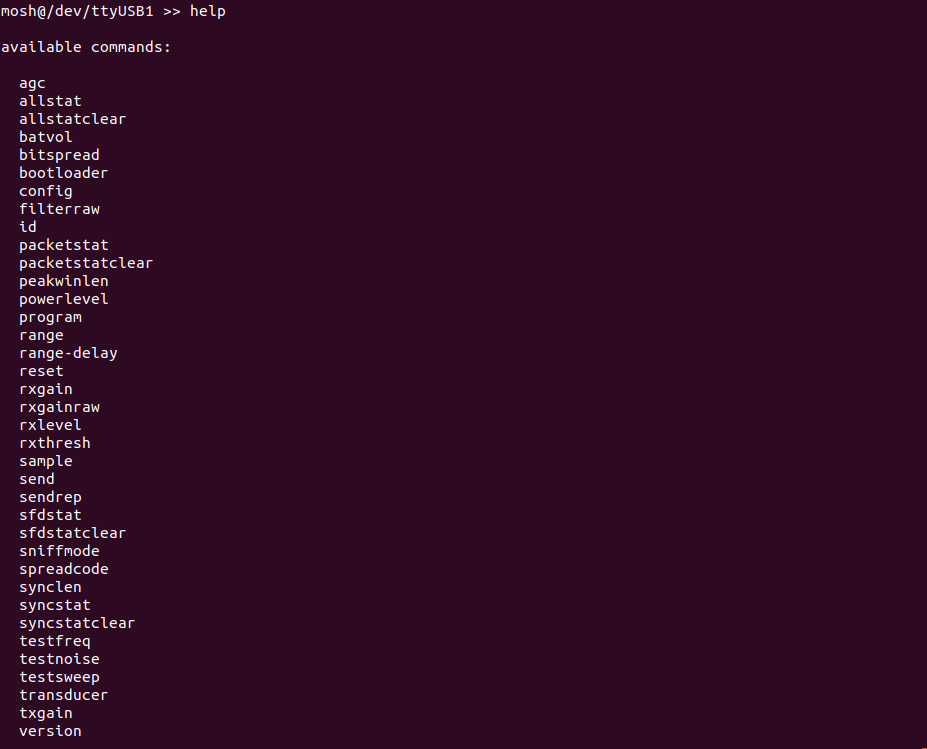 Figure 4: All Commands
Step 4: Modem ID
The command id returns the ID of the connected modem. If the modem responds, this will show that the USB connection works fine.
Name Your Modems
You should make sure that all modems have unique IDs, because these IDs are used addressing your modems; i.e., for sending data to a specific modem. We suggest to put little stickers with modem IDs on the hardware (this is actually what we do.
 Figure 5: Modem ID (last octet of the output: 0x14 = modem ID 20)
Step 5: Firmware Version
The command version returns the current firmware version of the connected modem. To avoid problems, make sure that both modems have the same firmware.
 Figure 6: Firmware Version
At this point, only consider the string output in the parentheses. The string in the example has the following meaning (hyphens separate the git parameters).
| Git Parameter | Value |
|---|---|
| Branch | feature_desert |
| Commit count | 18 |
| Commit ID | 952e2bf |
Step 6: Say Hello
Now it is time to say hello by sending a message from modem A to modem B. For this purpose, we type the command
send 255 00 0 hello_world_from_A
send is the address (ID) of the receiver. It is an integer value, expected as decimal value.
In our case, however, we do not use the address of modem A but the so-called broadcast address with the reserved value 255.
Addressing
The modem IDs are used as address for sending data packets.
The value 255 is the broadcast address and must not be used by any modem as its ID.
The second parameter is the packet type as hexadecimal number (without prefix 0x). In this example, we use the value 00.
Packet Types
All data packets have a user-defined packet type.
Packet types may take any value from 0 (`0x00`) to 126 (`0x7E`); values from 127 (`0x7F`) to 255 (`0xFF`) are reserved for internal use.
The third parameter is an integer value for flags, which will be explained later. For now, we use the value 0. Finally, the fourth parameter is a character string for the actual data message we want to send; this part of each packet is called payload
Maximum payload length
ahoi packets have a maximum payload (data) length of currently 128 bytes.
Press return and the message will be sent. If the transmission was successful, the received message will be shown in the terminal of modem B. Please refer to the tutorial on Modem Packets to learn what data is shown by the MoSh.
 Figure 7: Send once, modem A. MoSh echoes the send request transmitted to the connected modem in raw format.
 Figure 8: Send once, modem B. MoSh displays the received packet by the connected modem in raw format; the data message is also displayed as character string.
Step 7: Repeated Send
Instead of sending a message only once, there is also the possibility to send the same message several times.
The corresponding command is called send-rep.
The first parameter of this command is the number of repetitions; e.g., three repetitions in the example illustrated in Figure 8.
The second parameter is the time in seconds between two each two consecutive sends; e.g., five seconds elapse between each sent packet in Figure 8.
The remaining parameters are equivalent to the ones of send.
Communication Timing
Acoustic underwater communication is slow! Transmitting a packet with the ahoi modem takes between ca. 0.25s and 5s depending on the amount of data and distance between sender and receiver.
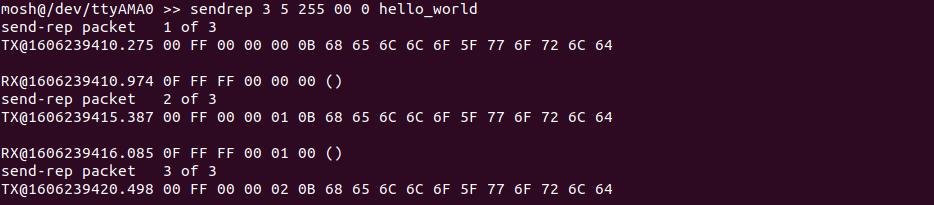 Figure 9: Send repeat 3 times, modem A. MoSh displays the progress of the repeated send and echoes each send request transmitted to the connected modem in raw format.
 Figure 10: Send repeat 3 times, modem B. MoSh displays the received packet by the connected modem in raw format; the data message is also displayed as character string.
Step 8: Packet Status
When working with the ahoi modems, you may be curious to learn how many packets have been transmitted and received by each modem.
This question (and others) are answered by the output of the command packetstat.
The modems responds to the command with a list of counters (all are 16-bit unsigned integer values; i.e., two octets), that can be reset (all values become zero) by the command packetstatclear.
In the example in Figure 11, you can see that three messages have been transmitted (octets 7 and 8 with value 00 03).
In Figure 12, you can obtain the information that three packets have been received correctly (octets 13 and 14 with value 00 03).
A full explanation of all values is beyond the scope of this tutorial, so we kindly refer you to the firmware source code.
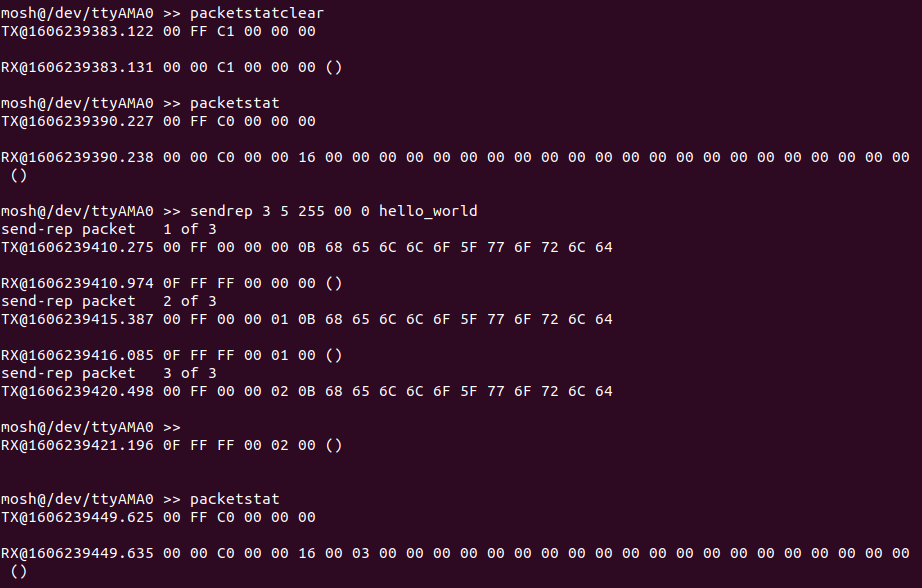 Figure 11: Send repeat 3 times with packet status, modem A.
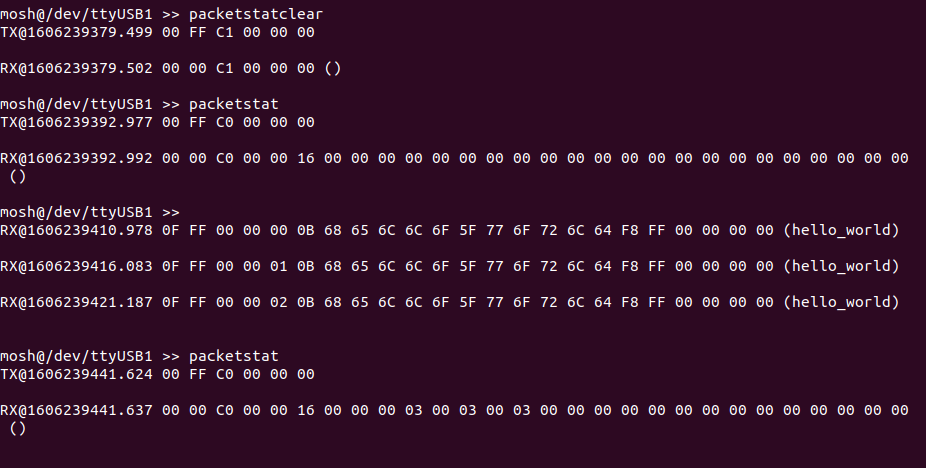 Figure 12: Send repeat 3 times with packet status, modem B.